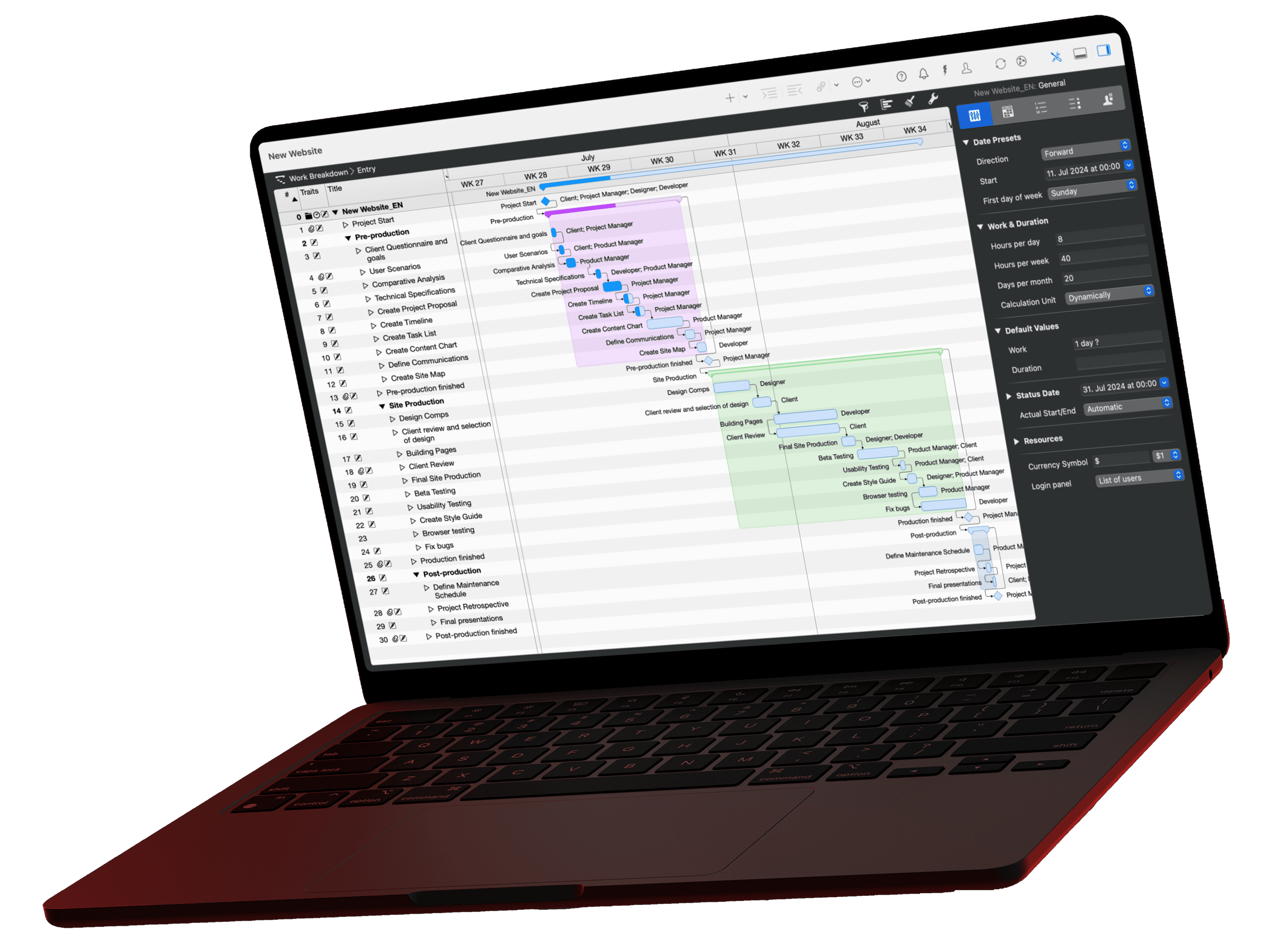
In this lesson, you manage the tasks of a running project directly in Merlin Project: on the Kanban board, with a custom field for priority, with filters for due activities and in the Progress view. The example is the office move from the previous lessons. The Kanban board, custom fields, filters and the Progress view are part of Merlin Project; Merlin Project Express doesn't include them.
What task management is and which methods help you prioritize, from the Eisenhower matrix to the MoSCoW method, is explained in the guide Task Management: Definition, Methods and 5 Tips.
Managing tasks on the Kanban board

The Work Breakdown shows the whole project with all dependencies. For daily work, the status of individual activities is often all you need. The Kanban board shows exactly that:
- Choose View › Net Plan › Kanban.
- The first time you open it, click Group by status field.
- Choose by new field from template and the template Simple Kanban.
The board shows four columns: Backlog (not started), In process (0 %), Verifying (80 %) and Done (100 %). Drag a card to another column, and the activity takes on the stored progress value. The Gantt chart shows it right away. If needed, set a minimum and maximum number of cards for each column; if a column exceeds its maximum, Merlin Project reports a conflict.
Setting priorities with a custom field

Merlin Project has a built-in Priority field with values from 0 to 1000. It controls resource leveling: when resources are over-utilized, Merlin Project schedules activities with higher priority first. For a task priority such as "High, Medium, Low", create a custom field instead:
- Choose Insert › Column.
- Choose For new Field and enter the field name "Task priority".
- Confirm with Insert Column and choose the Type Text in the column's Inspector.
- Under Pre-defined values, add "High", "Medium" and "Low".
Set the value in the column or in the Inspector on the User-defined › Fields tab. To make high priority stand out, create a rule on the By Rules tab of the Style Inspector: activities with the value "High" get a red border.
Filtering due and late tasks

Click the funnel icon in the function bar or choose View › Filters. Under Built-In you find, among others:
- This Week and Today for upcoming activities
- Behind Schedule and Slightly Behind Schedule for late activities
- Personal Tasks for activities assigned to the logged-in user
- Milestones for all milestones of the project
Create your own filters with + below the list, for example "Task priority is High and Behind Schedule".
Checking the status of all tasks

The view View › Work Breakdown › Progress shows every activity with a status icon: green circle on time, yellow triangle up to 10 % behind schedule, red square more than 10 % behind schedule, checkmark at 100 %, empty circle for future activities. The reference point is the Status Date in File › Project Settings; without an entry, today's date applies.
The next lesson, Plan Versus Reality, shows how to record actual values and compare them with the plan.
Questions about the learning path?
We’re happy to refer you to our partners. They offer dedicated Merlin trainings for any topic and support rolling out Merlin across your projects.
We recommend: Gareth Watson, certified Merlin Project Trainer (online & inhouse).